Split turns one long PDF into smaller ones. Maybe a scanner put a whole month of invoices into one file, or you only need to send chapter two. Choose how to cut, and the parts are saved straight to your device.
How to split with PDF Keel
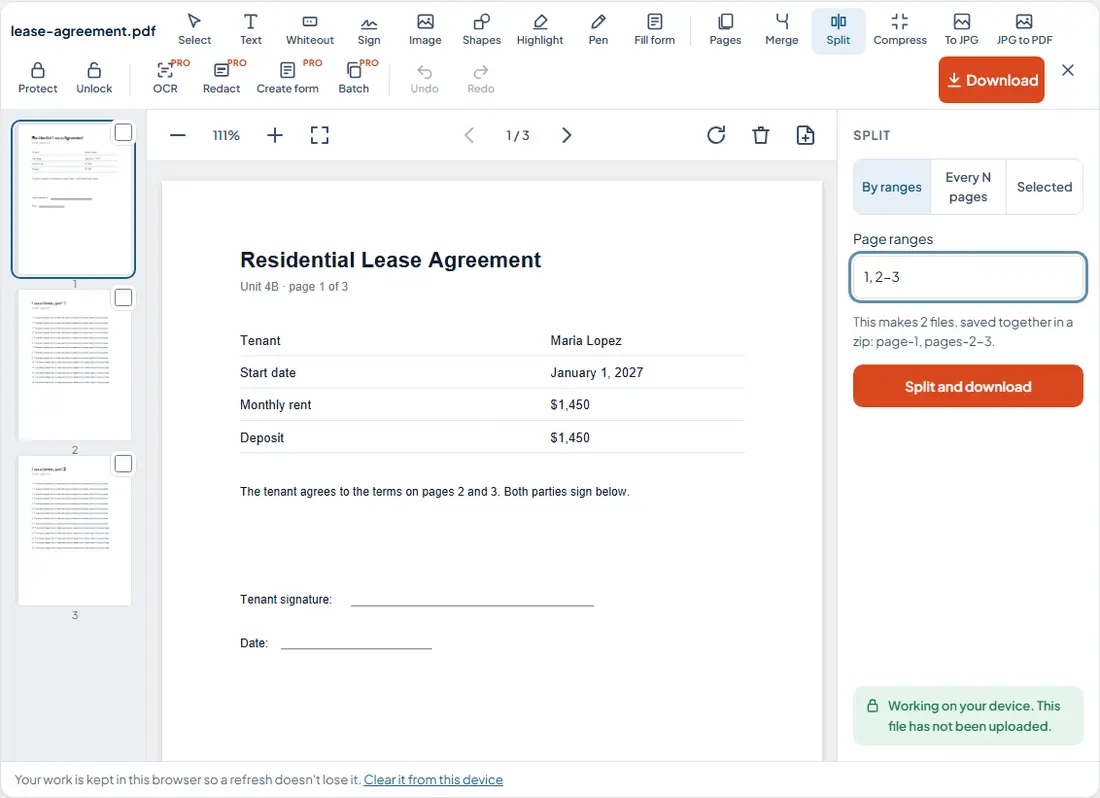
- Open the PDF and look at the page numbers in the side rail.
- In the Split panel pick By ranges, Every N pages or Selected.
- For ranges, type groups separated by commas, like 1-3, 4-9. Each group becomes its own file. Write 5-end to go to the last page.
- For Every N pages, set how many pages each file gets.
- For Selected, tick the pages you want in the rail.
- Read the summary line, then press Split and download.
What it can't do
Split does not detect where one invoice ends and the next begins. You tell it the page numbers. Bookmarks and internal links are left out of the parts.
Tip
One page per file is easy: choose Every N pages and keep the number at 1. A 40-page scan becomes 40 files in one zip, each named with its page number.
Questions
Why did I get a zip file?
When the split makes more than one PDF, they are packed into a single zip so your browser downloads them in one go.
Can a page go into two parts?
Yes. Ranges can overlap, for example 1-3, 3-5.
Do my edits carry over?
Yes. Text, signatures and rotations you added are included in every part.